Arrange the session.
Add slides, notes and activities in the order you want to lead them.

Follow the trainer, participant and room views through the work of running a session. These screenshots show example activities and a completed recap.
Build a reusable training, then schedule a run for the next group. Your preparation becomes the starting point for every delivery.
Add slides, notes and activities in the order you want to lead them.
Set Playful, Professional or Gentle defaults to suit the room. Explore the three styles.
Set the dates and bring registrations into the training, whether your event is free or paid.
Share the six-digit join code or QR code. Participants open the session in their phone browser, with no app to download or participant login.
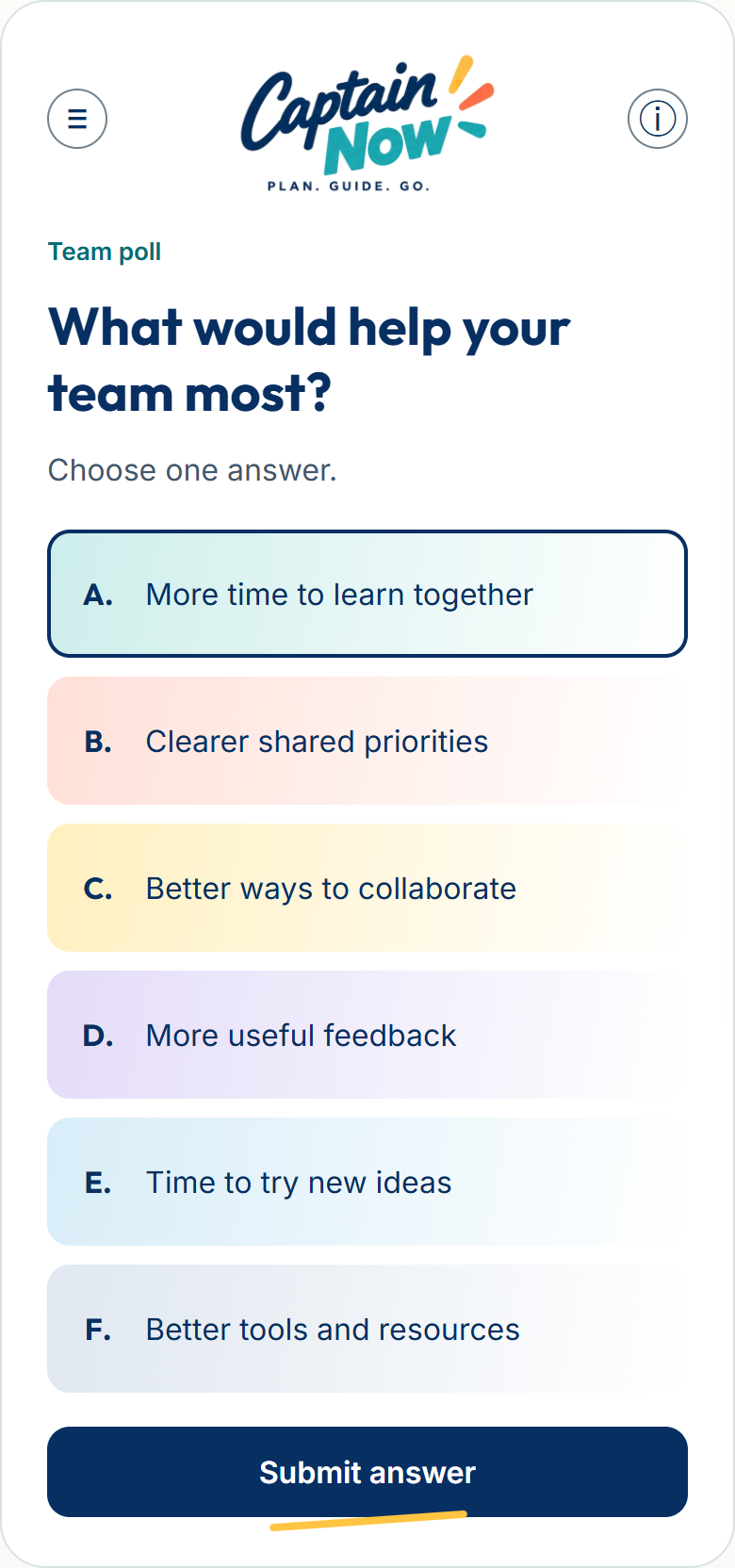
When you start an activity, they get a clear prompt and a place to respond. This example shows an answer selected before submission.
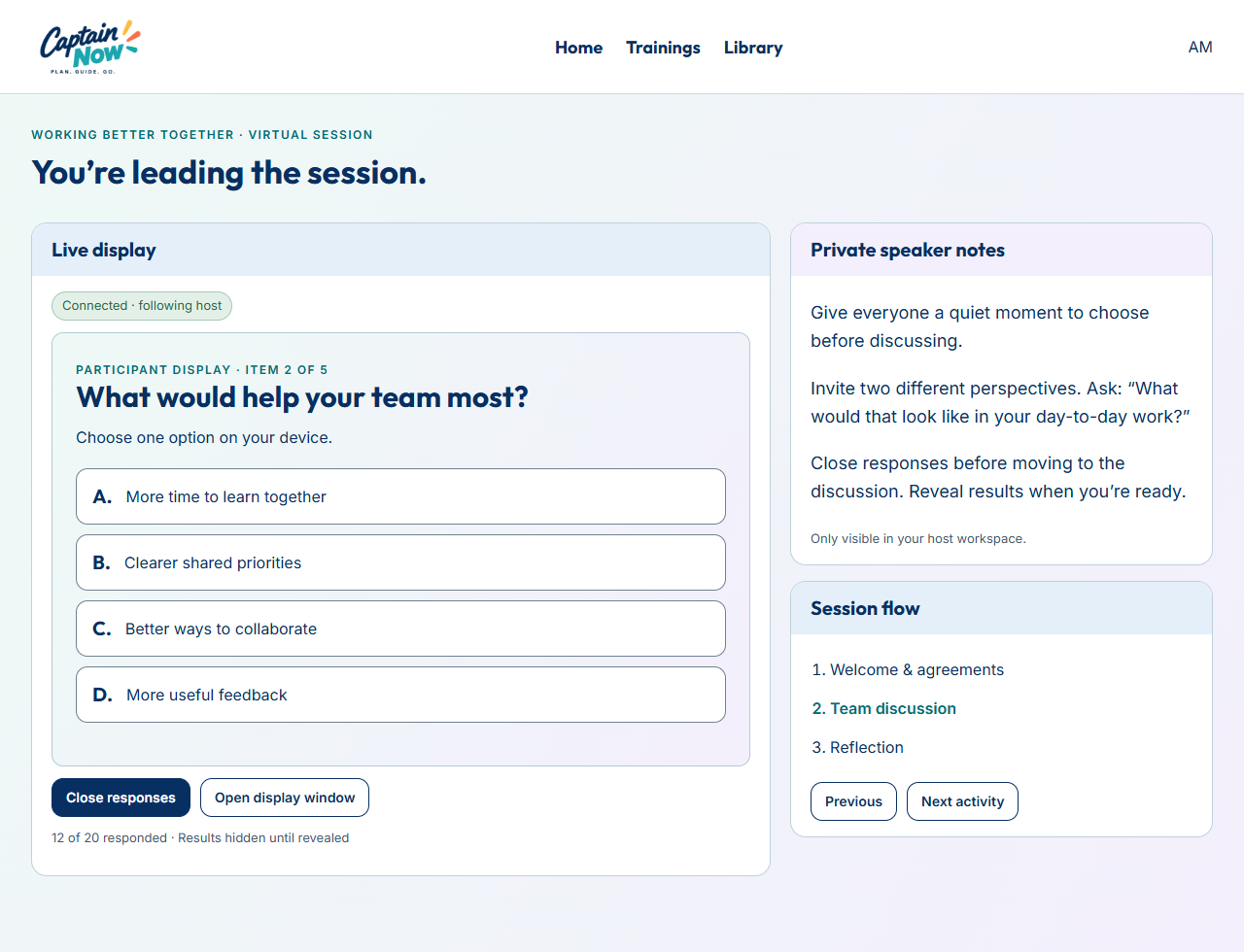
Keep the live activity beside your private speaker notes and session flow. See response counts while the group answers, then close responses when you are ready.
Move to the next activity from the same workspace. Your notes stay in the host view while the room follows the shared display.
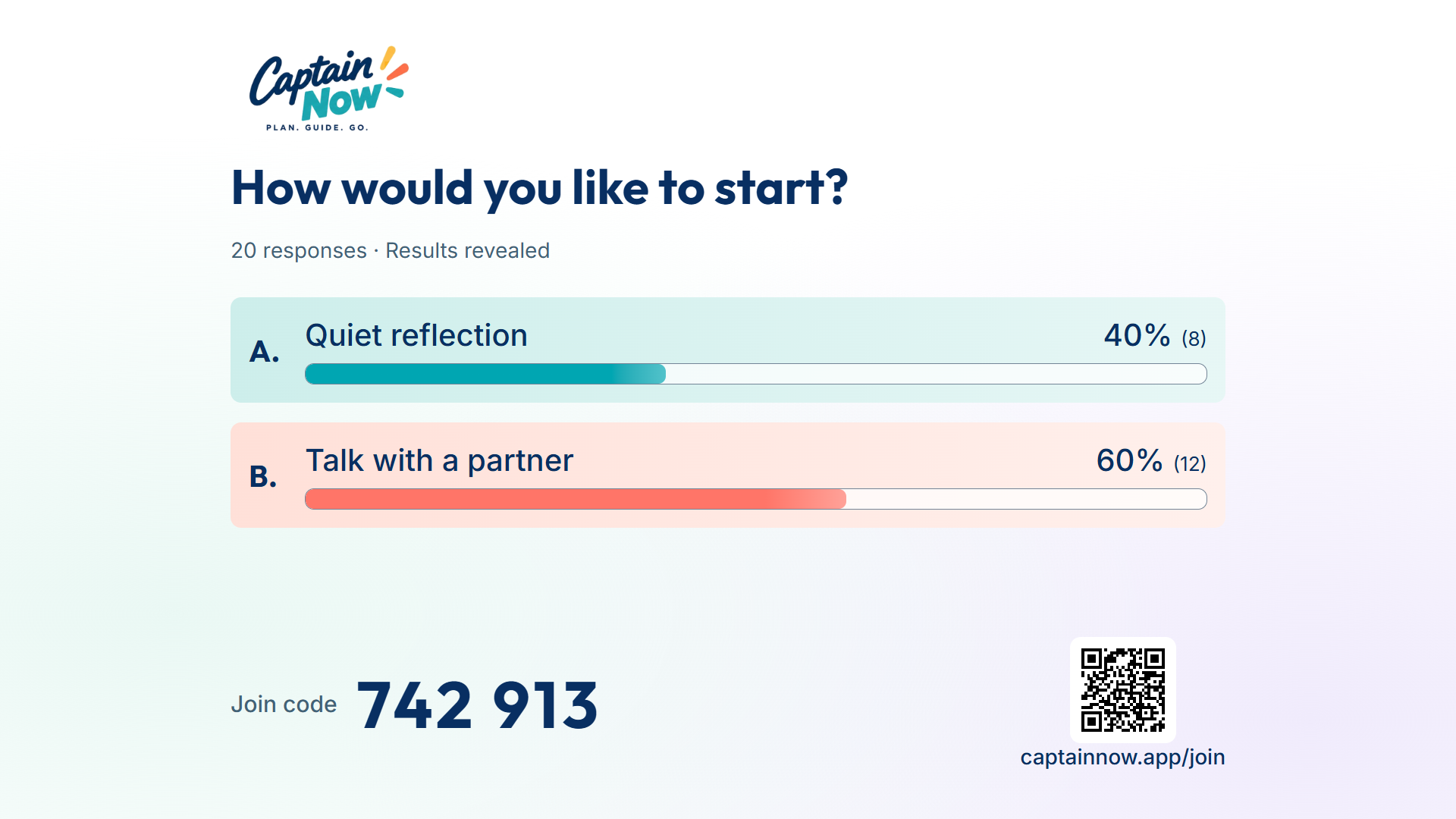
Reveal poll results on the room display and use them to guide the discussion. Here, a sample opening poll helps the trainer choose between quiet reflection and a partner conversation.
For smaller conversations, give each breakout group a prompt and shared board. Bring their work back into the wider session.
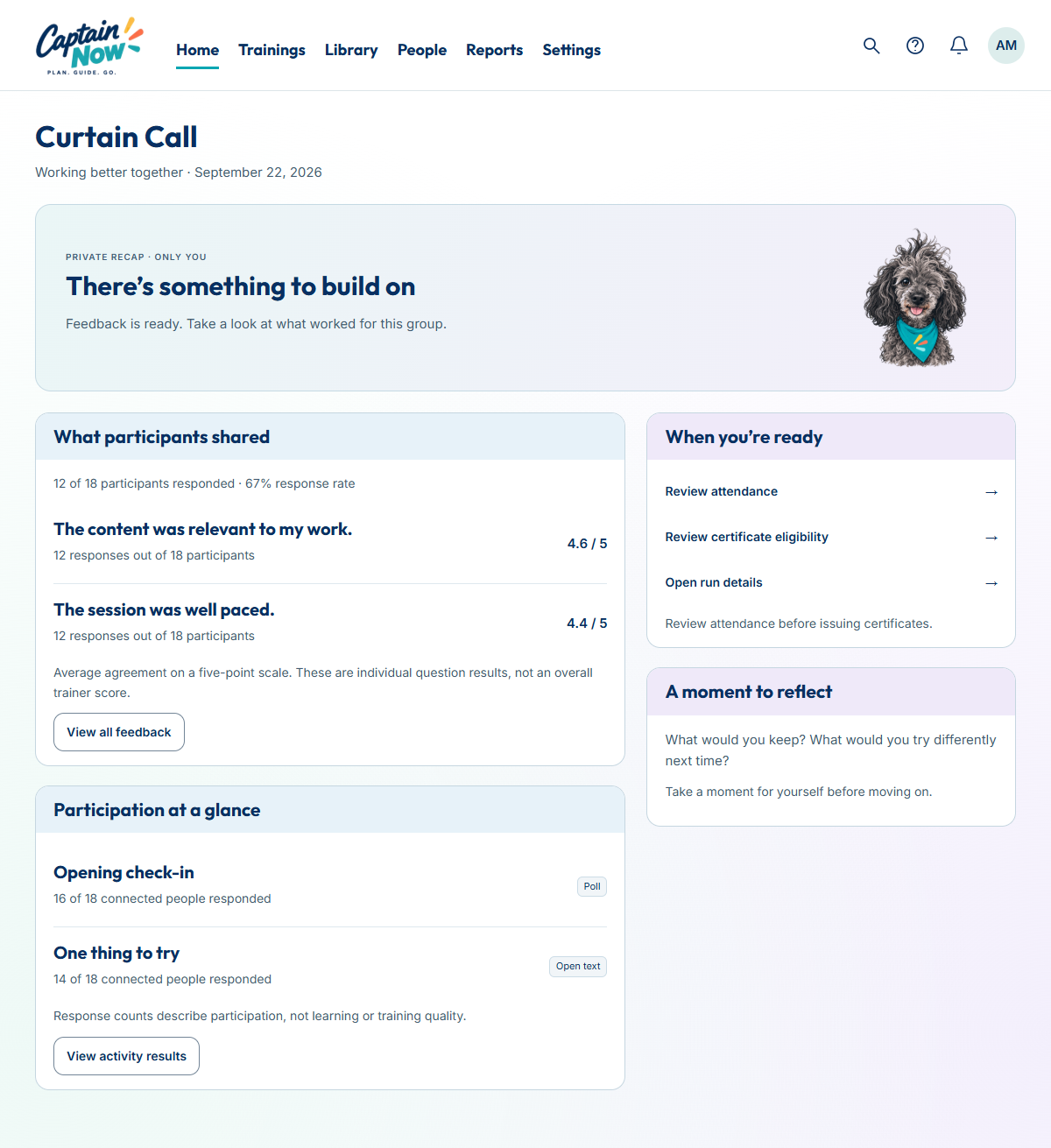
Curtain Call brings feedback and participation into a private recap. Read the responses, reflect on the session and decide what to keep or change.
Feedback on the material stays separate from feedback on delivery. Response counts show participation, so you can read the feedback with context.
Review attendance and certificate eligibility, share materials and issue completion certificates. Use what you learned when you run the training again.
Select organizations are already using Captain Now. Join the waitlist to hear when it opens to everyone.